social media
How to Schedule Instagram Posts in 2026: Mobile & Desktop Guide
Scheduling Instagram posts in 2026 is less about “saving time” and more about staying consistent without living on your phone. Instagram’s native tools are better than they used to be, but the experience still varies by account type, device, and content format. If you’ve ever tried to schedule a post and hit a missing button, a vague error message, or a time limit you didn’t know existed—this guide is for you.
Below is a practical walkthrough for how to schedule Instagram posts in 2026 (mobile & desktop), including free options, how to schedule Reels, and the real-world troubleshooting that most tutorials skip.
Before you schedule: eligibility, account setup, and what Instagram actually allows
A quick scenario: you open Instagram, you’re ready to schedule next week’s post, and the “Schedule” option simply isn’t there. Nine times out of ten, it’s not user error—it’s account eligibility or a feature mismatch across surfaces.
To use native scheduling, you’ll typically need:
- A Professional account (Creator or Business)
- Your account in good standing (no active restrictions)
- An up-to-date Instagram app (mobile) or access to Meta tools (desktop)
If you’re asking, “Why can’t I schedule posts on my Instagram professional account?” the most common causes are: the account isn’t actually set to Creator/Business, the app is outdated, the feature hasn’t rolled out to your region/account, or you’re trying to schedule a format that isn’t supported in the place you’re using (for example, certain options missing inside Instagram but available in Meta Business Suite).
Instagram also has practical constraints that can surprise people: scheduling windows (how far ahead you can schedule), occasional media limitations, and differences between scheduling a standard feed post vs. a Reel.
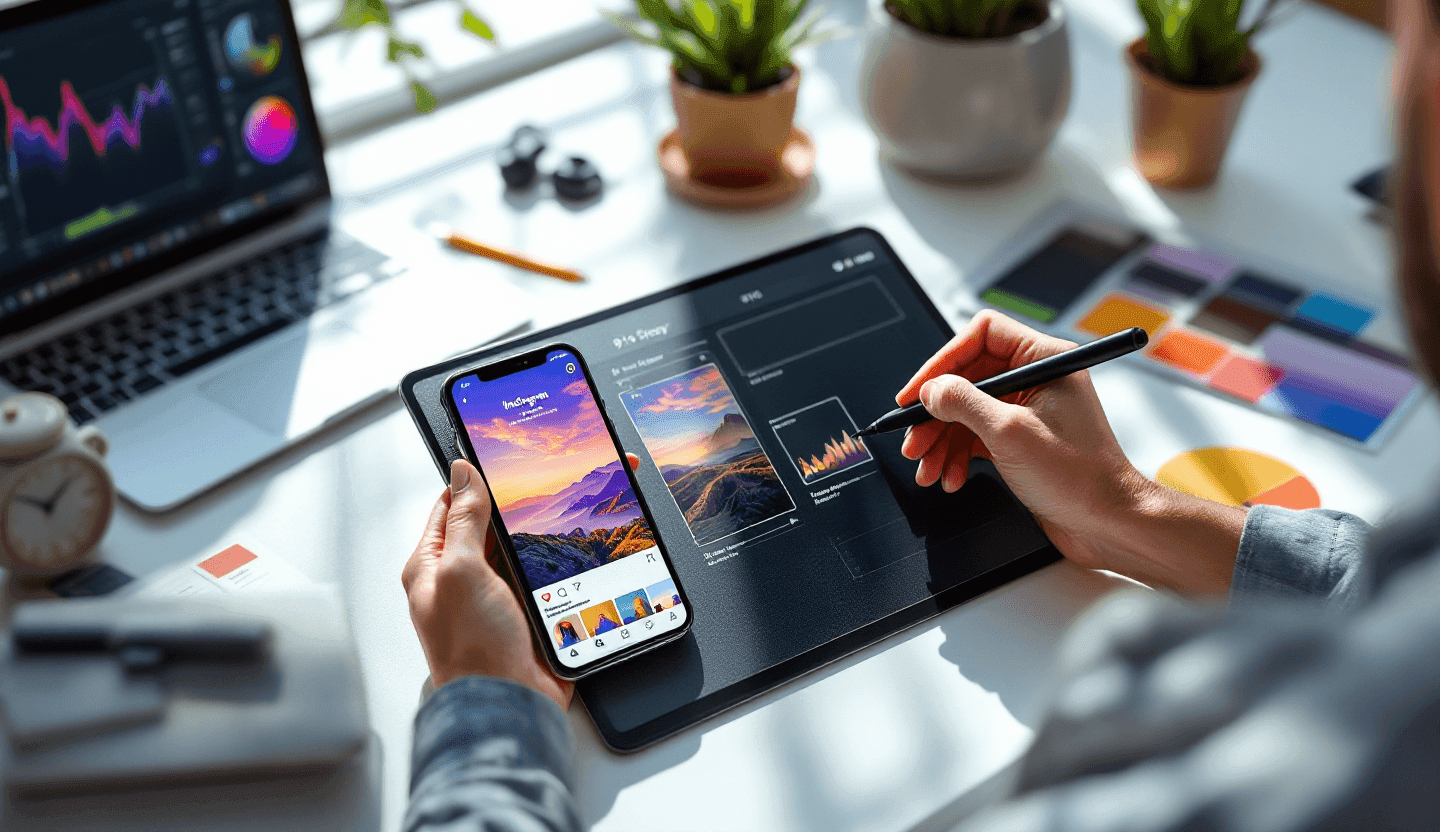
How to schedule Instagram posts on mobile (Instagram app)
If your workflow is mobile-first, native scheduling inside the Instagram app is the cleanest option—no extra tools, no integrations, no permissions to manage. It’s also where most people hit the “missing schedule button” problem, so it helps to know exactly where it lives.
Step-by-step: schedule a feed post on mobile in 2026
- Open Instagram and tap Create (+).
- Choose Post (or Reel, if that’s your goal), then select your media.
- Edit your content as usual (crop, filters, etc.), then tap Next.
- On the final screen (caption/settings), look for Advanced settings or a similar option near the bottom.
- Find Schedule this post, toggle it on, then pick your date and time.
- Tap Back, confirm details, then tap Schedule.
If you’re wondering, “How do I schedule a post on Instagram from my phone?” that’s the native flow. The key is that scheduling usually appears late in the publishing process, not at the beginning—so people often assume it’s missing because they never scroll far enough on the final settings screen.
Where to manage scheduled posts on mobile
After you schedule, you’ll want to verify it’s actually queued (especially after app crashes or spotty connections). In many accounts, scheduled items appear inside Professional dashboard → Scheduled content. If you don’t see it there, check Meta Business Suite as well—some accounts surface scheduled items more reliably in Meta tools than inside the Instagram app.
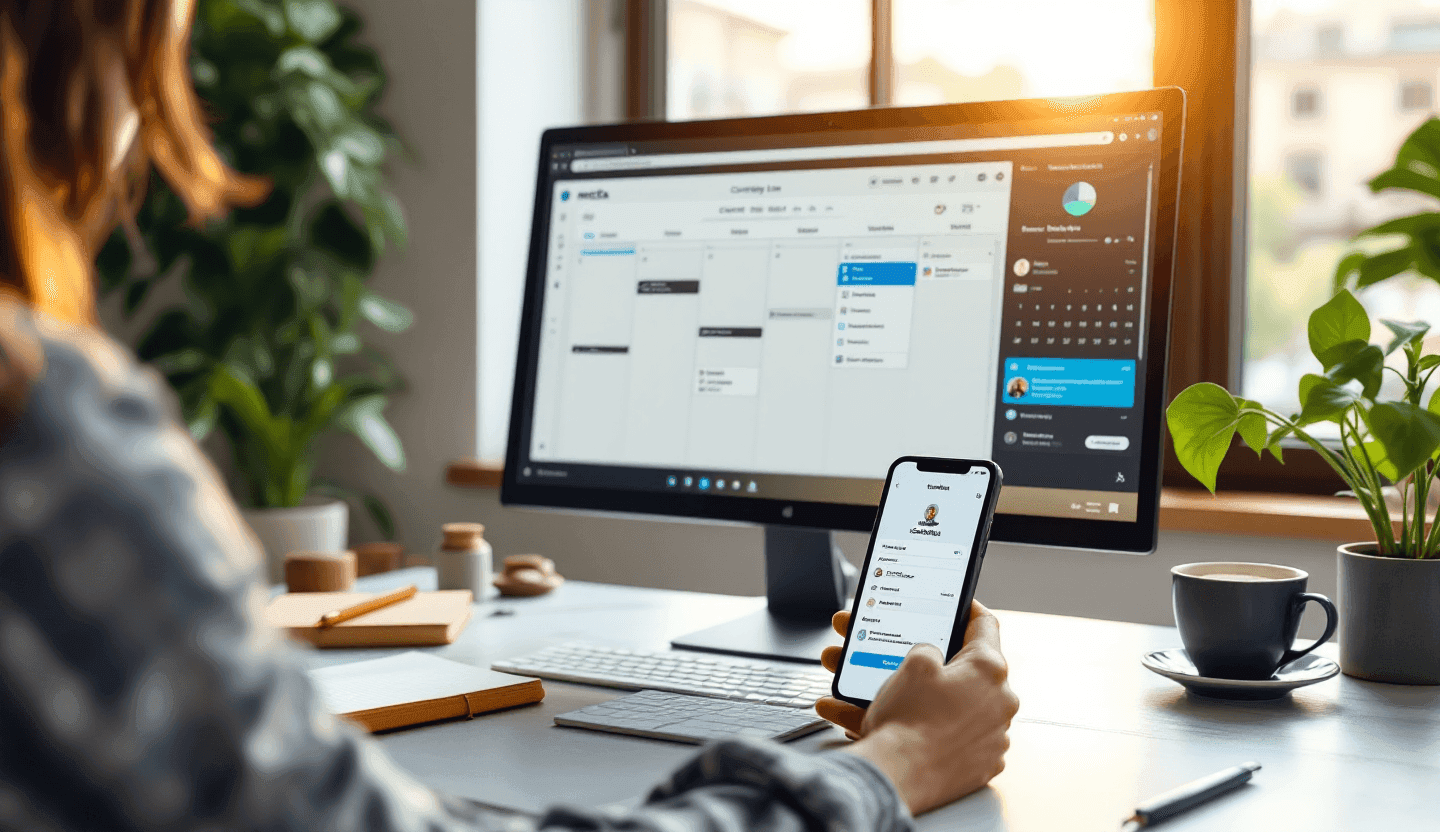
How to schedule Instagram posts on desktop (Meta Business Suite and other options)
Desktop scheduling is the difference between “I’ll post when I remember” and “my content calendar runs itself.” It’s also where you get more comfortable drafting captions, organizing assets, and planning a week at a time.
If you’re asking, “Can you schedule Instagram posts from a desktop or PC?” yes—and in 2026, the most reliable free route is still Meta Business Suite.
Step-by-step: schedule Instagram posts on desktop using Meta Business Suite (free)
- Go to business.facebook.com and open Meta Business Suite.
- Select the correct business and confirm your Instagram account is connected.
- Click Content (or Planner, depending on your layout).
- Choose Create post and select Instagram Feed (and Facebook too, if cross-posting).
- Upload your image(s) or video, write your caption, and add hashtags.
- Click Schedule, select the date/time, and confirm.
Meta Business Suite tends to be more stable for scheduling in bulk and reviewing everything in a calendar view. It’s also where you can spot obvious issues (like an account disconnected from Meta, permission problems, or content not meeting requirements) before you publish.
Desktop scheduling with third-party tools: when it makes sense
Native tools are fine for many teams, but third-party Instagram post scheduling tools can be worth it if you need approvals, shared calendars, recurring posts, asset libraries, or multi-brand workflows. The tradeoff is setup: you’re granting permissions, maintaining tokens, and relying on another platform’s integration quality.
If you need to centralize your Social Media Content planning and publishing, a third-party platform with robust collaboration features can be the right investment.
A practical rule: if you only manage one account and just want consistency, native scheduling is usually enough. If you manage multiple clients, multiple channels, or a real content pipeline, third-party scheduling becomes less of a luxury and more of infrastructure.
Scheduling Reels and other formats (what works best in 2026)
Instagram keeps pushing video, so scheduling Reels is now part of any realistic content plan. The catch is that Reels scheduling isn’t always identical across mobile vs. desktop, and certain audio choices can trigger restrictions.
How to schedule Reels from a computer
If you’re asking, “How do I schedule Reels on Instagram from a computer?” start with Meta Business Suite. In many cases, it supports scheduling Reels and video content directly, with better visibility into whether the Reel is eligible.
When scheduling Reels, watch for two common roadblocks:
- Music/audio restrictions: some trending audio can’t be used in scheduled or business contexts. If you see a vague publishing failure, try switching to royalty-free music or original audio.
- Aspect ratio/format issues: Reels typically need vertical dimensions. A horizontal video might upload but fail later or perform poorly.
For more on why Reels can dramatically impact discovery and search-driven growth, see Why Reels in FB IG Drive Growth: Proven SEO & Search Insights.
Carousels, single-image posts, and standard videos are usually straightforward. Reels are where “it should work” often turns into “why did it fail at the last second?”
Scheduling Instagram posts for free vs. paid tools
Many people search “How do I schedule Instagram posts for free?” because they assume scheduling requires a subscription. In 2026, you can schedule without paying—if you use the right channel.
Free options typically include:
- Instagram app scheduling (for eligible Professional accounts)
- Meta Business Suite on desktop (and often mobile)
- Limited free tiers of some third-party tools (usually capped by accounts, posts, or features)
Paid tools earn their keep when you need team collaboration, approvals, content libraries, multi-platform scheduling, analytics consolidation, or automated reporting. If you’re solo and consistent, free tools handle the core job.
Troubleshooting: the real reasons scheduling fails (and quick fixes)
Most scheduling frustration comes from silent limitations and unclear errors. Here are the problems that block people most often—and the fastest ways to get unstuck.
You don’t see the “Schedule” option
This usually comes down to eligibility or UI differences.
Check these quick fixes:
- Confirm you’re on a Creator/Business account (Professional).
- Update Instagram to the latest version.
- Try scheduling via Meta Business Suite instead of the app.
- Log out/in, then revisit the creation flow (the toggle often appears only at the final settings screen).
“Your post couldn’t be scheduled” or a generic error message
Generic errors often hide a specific constraint: file format, audio rights, connection issues, or a permissions mismatch between Instagram and Meta.
Try:
- Re-uploading media (especially if it was edited in a way Instagram doesn’t like).
- Switching from trending music to original/royalty-free audio for Reels.
- Checking that the Instagram account is still connected in Meta Business Suite.
- Scheduling a simpler test post (single image) to isolate the issue.
“Why can’t I schedule posts on my Instagram professional account?” (even though it’s professional)
A Professional label doesn’t guarantee full feature access. Instagram rolls out features gradually, and some accounts get capabilities later than others. If your account is eligible but still missing the feature, Meta Business Suite is often the workaround because it’s built for business publishing first.
Also check for restrictions: if your account has policy issues, limited monetization, or other flags, publishing features can behave unpredictably.
Your scheduled post didn’t publish
This is common with flaky connections, last-minute media processing failures, or changes after scheduling.
Do this:
- Verify the item still appears in Scheduled content (it might have been moved to drafts).
- Check notifications inside Instagram and Meta Business Suite.
- Avoid editing media after scheduling; if you must edit, duplicate the post and re-schedule.
Limits and planning windows
Instagram and Meta tools can enforce scheduling windows and posting limits that aren’t clearly displayed. If you’re scheduling far ahead and getting blocked, try moving the scheduled date closer, or schedule in smaller batches (a week at a time) to reduce failures.
A smarter way to stay consistent: build scheduling around data, not guesses
Scheduling solves timing. It doesn’t solve what to post—or how to choose topics that actually drive reach, clicks, and long-term traffic. That’s where most brands waste time: they schedule content that looks good but isn’t aligned with what people search for or care about.
MagicTraffic helps teams stop guessing by turning real keyword demand into a practical content plan. Instead of brainstorming blindly, you can use MagicTraffic to identify search-backed topics, generate SEO-optimized blog posts, then repurpose those posts into Instagram captions, carousels, and short-form video scripts. It keeps research, creation, and publishing in one workflow, so you’re not bouncing between tools to get a single week of content out the door. For teams that want a unified publishing pipeline, MagicTraffic’s social content workflow connects research, drafting, and scheduling in one place.
Even better for scheduling: once your topics are data-driven, your calendar becomes easier to maintain. You’re not scrambling for ideas on Tuesday morning because you already have a queue of content tied to measurable demand.
Instagram scheduling tips that prevent last-minute chaos
Most missed posts aren’t caused by a lack of motivation—they’re caused by small planning gaps. A few habits smooth out the entire process.
Schedule at least a few days ahead so you have room to swap posts if news or trends change. Keep a simple naming convention for drafts and scheduled items (especially if you’re managing multiple campaigns). If Reels are part of your plan, test-publish one Reel format first to confirm your audio and dimensions work reliably before scheduling a batch.
If you’re pairing Instagram with blog content, align your schedule with your publishing dates. A post that promotes a blog article should go live after the article is published and indexed, not before. This is another place where MagicTraffic’s workflow helps—your SEO content and your social schedule can be planned together instead of treated like separate jobs. For tactical guidance on creating high-impact social content, see Master Social Media Content Creation for Maximum Impact.
Posting consistently in 2026 without burning out
Learning how to schedule Instagram posts in 2026 (mobile & desktop) is mainly about choosing the right tool for your workflow: the Instagram app for quick scheduling, Meta Business Suite for reliable desktop planning, and third-party platforms when you need approvals and scale. The difference-maker is knowing what to do when scheduling fails—because it will, occasionally—and having a quick checklist to recover fast.
Once the mechanics are handled, consistency becomes a content problem, not a scheduling problem. Data-backed topic selection, reusable content systems, and a single place to research, create, and schedule are what make posting feel sustainable. MagicTraffic is built for exactly that: turning real search demand into content you can publish, repurpose, and schedule with less guesswork and more predictable growth.