video
How to Use Canva AI Video Generator for Stunning Brand Videos
If you’re already comfortable in Canva and want to punch above your weight with video, the Canva AI Video Generator can feel like a creative superpower. It helps you go from idea to edited sequence fast, while giving you the control to refine pacing, style, and brand consistency. Below, you’ll learn how to use the canva ai video generator to script, build, and polish high-performing videos, plus advanced techniques and creative hacks that experienced users love.
What the Canva AI Video Generator Actually Does
Think of Canva’s AI as a set of smart assistants inside a familiar editor. You can generate scenes from prompts, transform scripts into storyboarded sequences, and auto-match visuals to soundtracks with Beat Sync. The canva video ai tool also offers automatic captions, text-to-speech voiceovers, and instant resizing for different platforms, so your 16:9 explainer can become a 9:16 Reel in a few clicks.
Beyond generation, the real value is in acceleration. You’re not just getting a “done-for-you” video; you’re getting a structured starting point that you can art-direct. That means faster concept-to-first-cut, with room to craft the details that make videos feel custom and on-brand. Explore more about this technology in our overview of Top AI Video Generation Tools for Effortless Content Creation.
Set the Stage: Strategy Before Scenes
AI video generation with Canva is much stronger when your idea is already shaped. Start with a simple creative brief: who you’re speaking to, the single promise or takeaway, and the platform where it will live. If you work with SEO or social insights, translate search intent into scenes—what viewers need to see and hear in the first five seconds, the proof that backs it up, and a clear CTA. For product explainers or personal finance comparisons, plan a “problem → option → decision” flow so your narrative leads naturally to action.
Gather assets you’ll want AI to use or echo: logos, fonts, brand colors (via Brand Kit), product screenshots, B‑roll, and testimonial snippets. Then decide on tone—professional, friendly, urgent—and pacing. The clearer your inputs, the stronger Canva’s suggestions will be.
Step-by-Step: From Prompt to Polished Cut
Here’s a compact workflow that experienced Canva users can follow and adapt:
- Start a new video and enter your promptOpen Canva and create a video project. Use the AI Video Generator (Magic Media or similar AI features) to generate a base sequence. Give it a prompt that includes audience, tone, and structure. Example: “Create a 30-second 9:16 video for TikTok explaining how to compare credit card rewards. Hook in first 3 seconds, 3 scene structure, modern typography, bold captions.”
- Script or outline with AIUse Magic Write to draft a script or paste in your own. Keep sentences tight and front-load the hook. Ask the AI to break your script into scenes with suggested visuals or B‑roll.
- Apply a template and Brand KitChoose a video template that aligns with your aesthetic, then apply your Brand Kit so colors, fonts, and logo lock in. This keeps AI outputs consistent with your identity and avoids the “generic” look.
- Generate or select visualsLeverage AI-suggested clips or pull from Canva’s stock. For product or finance content, mix simple motion graphics (icons, arrows, charts) with clean B‑roll. If you have product screens, use Smart Mockups to place them into devices.
- Add voiceover and captionsUse text-to-speech to quickly audition voiceovers, then record your own if needed. Turn on auto-captions and style them to match your brand. Burned-in captions boost retention on mute-first platforms.
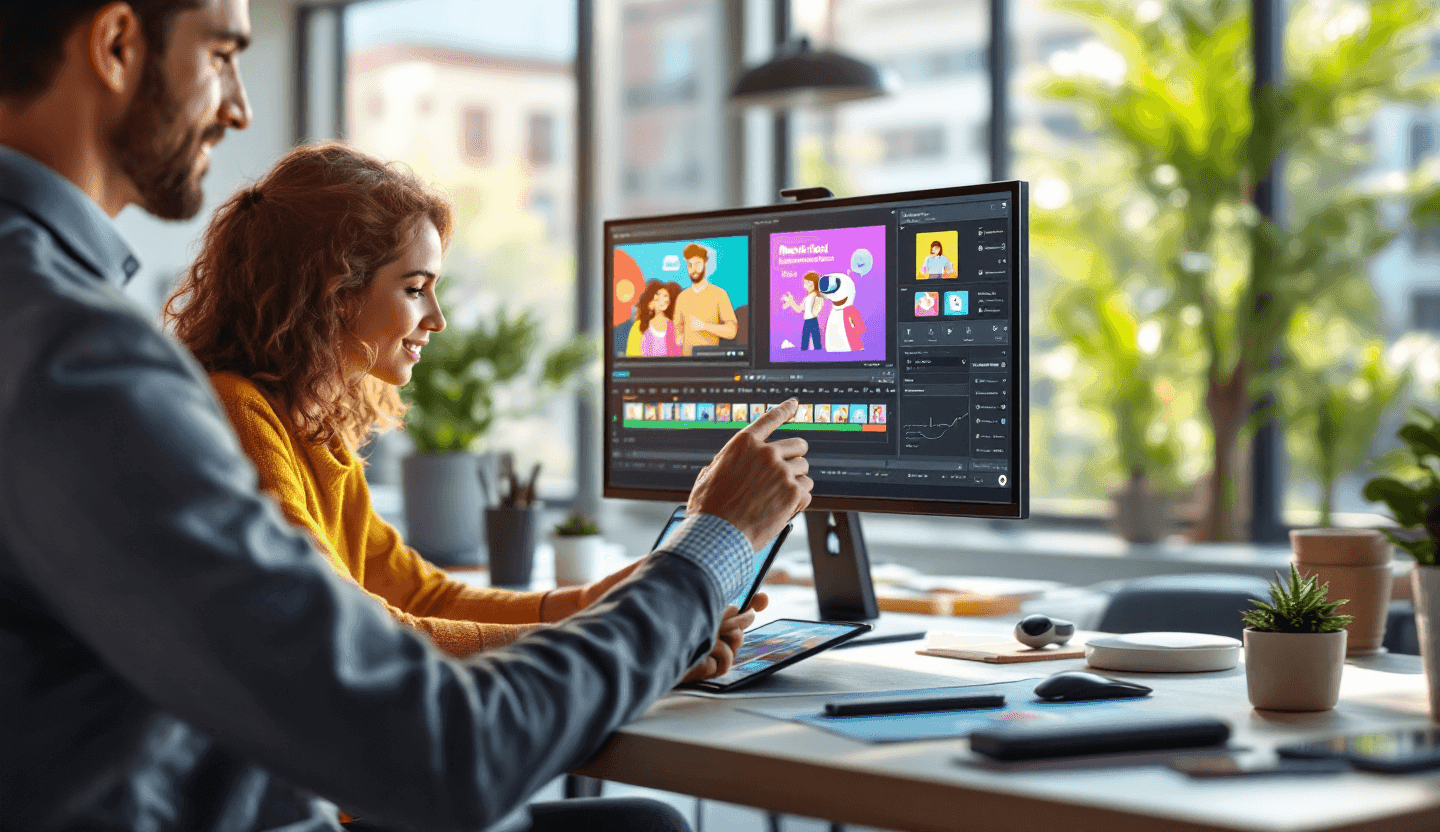
- Tighten pacing with the timelineMove to the advanced timeline. Trim dead space, cut on the beat, and stagger voiceover, captions, and graphics so they don’t compete. Use Beat Sync to align cuts with your track.
- Animate with intentionAnimate lower thirds, emphasize keywords, and use subtle motion (Fade, Move, or Create an Animation) to guide attention. Less is more—one thoughtful motion per scene beats a parade of effects.
- Resize for platformsUse Magic Switch to produce 1:1, 4:5, and 9:16 versions. Check that key text and faces remain inside safe zones.
- Export with the right settingsExport 1080p for most social channels; use 4K for YouTube or high-clarity displays when available. Keep file size reasonable for upload limits and fast playback.
Advanced Features That Add Professional Polish
Canva has matured into a surprisingly capable editor, especially when you lean on its AI-driven helpers alongside manual control. A few features stand out for pros:
- Beat Sync and Tempo AwarenessPick or upload music, then let Beat Sync suggest cut points. After syncing, nudge key frames by a few milliseconds to match motion to transients—titles that hit precisely on the snare feel more premium.
- Video Background RemoverIsolate speakers or products from busy scenes without reshoots. This is invaluable for UGC explainers where your subject filmed against a cluttered backdrop.
- Create an Animation (keyframe-like control)Draw movement paths and handle speed to create parallax pans, floating elements, or tasteful “camera” moves on stills. It’s a simple way to add depth without 3D.
- Magic Switch and Layout AdaptationWhen resizing, Canva proposes layout adjustments. Accept the base switch, then fix overlaps manually so CTAs and faces stay prominent.
- Auto Captions and StylesAuto transcripts save time, but style matters. Increase line height, add a soft background, and color keywords to create dynamic captions that double as design.
- Text-to-Image and Stock EnhancementFor scenes where stock falls short, generate textures, abstract bokeh, or illustrative cutaways with text-to-image. Layer subtle grain or a vignette to integrate AI art with real footage.
Creative Hacks to Make AI Outputs Feel Custom
AI makes good scaffolding. These techniques make the final cut feel distinctly yours:
- Use pattern interrupts every 3–5 seconds. Quick b-roll swaps, zooms, or a color card reset attention without jarring viewers.
- Mask videos into shapes or device frames to show comparisons side-by-side, perfect for product or feature breakdowns.
- Build cinematic depth from stills: split a photo into foreground/midground using background remover, then animate each layer at different speeds for a parallax look.
- Design modular lower thirds. Create reusable components with variable fields (title, subtitle, icon) so your voice stays consistent across a series.
- Loop the last frame into the first. For short Reels, a seamless loop increases watch time and can boost distribution.
Turn AI into Brand Storytelling
AI can draft scenes, but your brand makes them meaningful. Use narrative anchors—origin, mission, and proof—to structure sequences. Start with a problem your audience recognizes, then demonstrate with data and visuals that make comparisons easy. In personal finance content, show a 3-scene arc: a quick pain point (fees, APR confusion), a clear comparison moment (side-by-side features), and a confident action step (apply, learn more, or explore alternatives).
Keep your Brand Kit at the center. Specific color roles (CTA color reserved for buttons and final frames), typographic hierarchy (headline vs. caption), and an end-screen pattern (logo, value prop, URL) help viewers recognize you immediately. Add compliance language unobtrusively as a small, semi-transparent footer on relevant frames—readable, but not distracting.
Optimize for Performance and Platforms
Performance starts with the hook. In the first three seconds, state the payoff or show the transformation visually. Trim intros ruthlessly. Favor short sentences, large captions, and fast on-screen proof like a highlighted comparison table or a chart with a single, animated data point.
Aspect ratio matters. For YouTube and site embeds, 16:9 with 1080p or 4K is ideal. For TikTok, Instagram Reels, and Shorts, 9:16 with bigger type and centered subjects wins. Use Magic Switch to adapt layouts, then check safe areas manually.
When publishing, use consistent filenames, metadata, and thumbnail styles. On social, pin the CTA in the caption and the first comment. For web, embed videos near relevant copy and offer a short transcript for accessibility and SEO. If you’re planning content from search data, align the video’s primary keyword—like “canva ai video generator”—with the page headline and surrounding copy for stronger topical relevance.
Common Pitfalls (and Easy Fixes)
Over-stylized templates can bury your message. If a template feels noisy, strip back background elements, reduce animation speeds, and increase contrast for text. AI voiceovers that sound too synthetic can be softened by adding a subtle music bed and room-tone underlay, or by recording a custom VO after you lock timing.
Another trap is relying exclusively on AI-generated visuals. Blend them with product captures, user clips, or brand photography to build authenticity. Finally, watch for caption collisions—on vertical videos, move captions above the platform UI and keep them to two lines max.
Example Use Cases That Convert
For product explainers, lead with a question and answer it with a quick comparison scene, then show one example in detail. For testimonials, pair text-to-speech or real voiceover with B‑roll that proves the outcome—before/after charts or screen flows. For thought leadership, keep shots tight, use branded lower thirds for key takeaways, and interleave a data point every 8–10 seconds to maintain authority and pace.
If your content strategy is keyword-led, turn top queries into episodes. A video titled “How to use Canva AI Video Generator for brand storytelling” can become a series: scripting with AI, building modular templates, and optimizing for Shorts vs. Reels. Repurpose efficiently: one master script, three aspect ratios, multiple hooks for testing.
Discover more about these approaches in Best Video Generation AI Tools for Creative Teams.
Bring It All Together
The canva ai video generator doesn’t replace your taste—it amplifies it. Use the canva ai video maker to get rapid first cuts, then sharpen the story with brand-aligned typography, intentional pacing, and platform-aware framing. Lean on AI for speed—script drafting, scene suggestions, beat syncing—and spend your time where humans shine: crafting the hook, choosing visuals that tell the truth quickly, and building a finish that feels unmistakably yours.
With a clear brief, a tight process, and a few pro moves, you’ll turn AI-driven video creation into a reliable engine for standout content—whether you’re explaining complex financial products, launching a new feature, or building a recognizable series across every platform. For additional inspiration on AI creativity, see AI for Image Generation: Key Innovations & Practical Use Cases.